Getting Started
Start by typing what you want to do for your page heading and [Enter] so you have an empty line after:
- Music Fest
- TV Series
- Video Games

You can follow my example and do singers/bands for a music festival, or you can change the text and focus on something else like tv series or video games.


Go to the Insert tab and Table … 3×4.
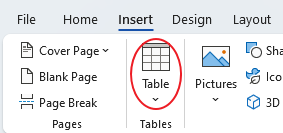


Table Headings
Add the topic & table headings as shown below for whatever topic you are doing…


Table Text
Add singers/shows/games in the empty table cells, but first [Enter] so you have an empty line for the pictures.


Make sure there is an empty line before each singer.


Default Text
Select everything on the page and set the default font type to Britannic Bold, size 20.


Page Heading Size
Select the page heading and pump up the size to 36.


Bottom Margin
Hover over the Ruler where the margin stars (white/grey), when you get a 2-pointed arrow and it says Bottom Margin, pull down to the 1/2″ mark.


Paragraph Spacing
- Select all the text on the page (CTRL+A) and go to the Layout tab.
- In the Paragraph section, set the Spacing to 6pt before & after.


Row Heights
- Select the bottom 3 rows…
- Then go to Table Layout and set the row Height to 2.6″


Extra Page?
You may have an extra blank page. Click on that page or below your table…

Clear Formatting. Then your empty line should be on page 1, no extra page anymore.


Center Page Heading
Center the page heading.


Cell Alignment
Select the table, then go to Table Layout and set cell Alignment to middle-middle.


Text Direction
- Select the first column
- Table Layout > Text Direction … click on it 2x
until the text is sideways


Column Widths
Click in the 1st column and set the width to .8″


Select the 2nd & 3rd columns and set the width to 2.9″


Table Headings
Select the first row and pump it up to size 26.


Select the first column and pump it up to size 26 as well.


Your text should look like this so far…

Borders & Shading
- Select the 1st row and the 1st column and fill them with a dark color…
- Then select them again and make the font color white.


Select the table, then go to Borders and set to No Border.


Page Heading Color
Now set the page heading font color to the same dark color.


Pictures
Copy the first picture for your topic – if you are doing your own topic/people, do a Google search…


Click on the empty line above the singer and paste it (CTRL+V).


Go to the Picture Format tab … Crop > Aspect Ratio > 4:3


- Set the picture style to the faded edges one…
- Set the picture Height to 2″
- Click off to see the result…


Repeat for the other pictures…


- Crop > Aspect Ratio > 4:3
- set Quick Style to the faded edges one
- picture Height = 2″
Crop>Aspect Ratio>4:3
Picture Style
Picture Height = 2″
And you’re done…