Theme Color
Go to the Design tab, and click on the Variants drop-down menu. Choose Colors … hover over the color list until you find one you like….

Do not choose the following styles as the background is too dark/bright and the variant does not have good color choices for the heading styles.


Headings
Layout: Master
Go to the VIEW tab > Slide Master…

Select the top/master layout (the one with the “1” beside it).
This sets the fonts on all the other slides.

Font Type
Font Choices…


Click on the border of the title box (or select the inside the box).

Go back to the Home tab and start typing in the font type. When it pops up, hit [Enter].

Don’t worry if the text is going outside the box.
- Cooper Black
- Hobo Std
- Jumble
- Showcard Gothic
- Snap
- Stencil

Font Size
Pump up to the font size to “54”.


Quick Style
With the title box still selected, go to Shape Format tab click on Quick Styles.

Choose a style from one of the following options.
Style #1

Style #2

Style #3

Then click on the grey bar for that style below to expand and make adjustments…
Style #1: Bevel + Shadow
- add a bevel that stands out and is easy to read the words
- add a shadow to make it stand out more


Style #2: Bevel + Outline
- add a bevel that stands out and is easy to read the words
- add an outline (white/black/theme color)


Style #3: Gradient + Shadow/Bevel
- set to a gradient (dark at bottom, lighter at top)
- add a shadow or bevel (whichever is missing)


Year
Select the 3rd layout on the left: ‘Title & Content’.

Go to the INSERT tab, and insert WordArt… choose the white indented one…

You’ll now have a text box like this on your slide…

- Type in your year.
- Then click on the top arrow/handle and rotate it so it’s sideways; hold SHIFT so it’s straight
- Hover over the edge of the text box – when your cursor turns to a 4-pointed arrow, click and drag the box over…


Section Layout
Select the last layout (for the song slides)…

Select the title box. Then go to Shape Styles > Quick Styles and change the style of the title box so it’s easier to read, stands out more, and is not the same color as the subtitle box (song name).


Stay in Slide Master View and get your project checked…

Adjust Song Pictures?
Go back to Normal view…

Check the song slide pictures that they are not covering any text…

- option #1: adjust the size/style of the picture (in the example below, it’s too small, better to change the style)


- option #2: reduce the width of the text box for the singer and then resize the picture so it’s as big as possible


Transitions
Go into Slide Master view…
Title Slide Layout
Select the Title Layout on the left…

Go to the Transitions tab. Use the drop-down menu to add the Curtains type of transition…


On the far-right, go to the Timing section. In the area for Advance Slide…

… set the amount for After to 5 seconds.

Here is a summary of the steps…
- Layout: Title Slide
- Transition Type: Curtains
- Advance Timing: 5 sec

Title & Content Layout
- Layout: Title & Content
- Transition Type: Random.
- Advance Timing: 15 sec.

Section Layout
- Layout: Section
- Transition Type: any type
- Advance Timing: 15 sec

Keep the project open in Slide Master view and get checked off.
Set up Slide Show
Go back to Normal View…
Go to the Slide Show tab > Set Up Slide Show…

Set the Show type to Browsed by an individual (window).

Slide Order
Go to Slide Sorter View…

Click and drag the list slides up after each song slide. You should have one list slide after each song slide…

Hand in the file
- Make sure your PPT file is “Saved”.

- Close PPT.

- Open your folder …

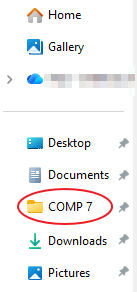
- Click on COMP 7 on the left. Make sure the PPT file has the green check status, then select it …

Click on the folder link below to open the hand in folder…
Hand In Folder
Split your window with Chrome & your folder. Drag your PPT file into the empty area below the folders. When you see a dotted outline, let go.

Get it checked that it showed up in the hand in folder and is the correct file…